
Remini for PC AI Photo Enhancement on a Bigger Screen
Learn the cleanest ways to use Remini on Windows or Mac through its web experience or an Android emulator, with requirements and setup steps explained clearly.
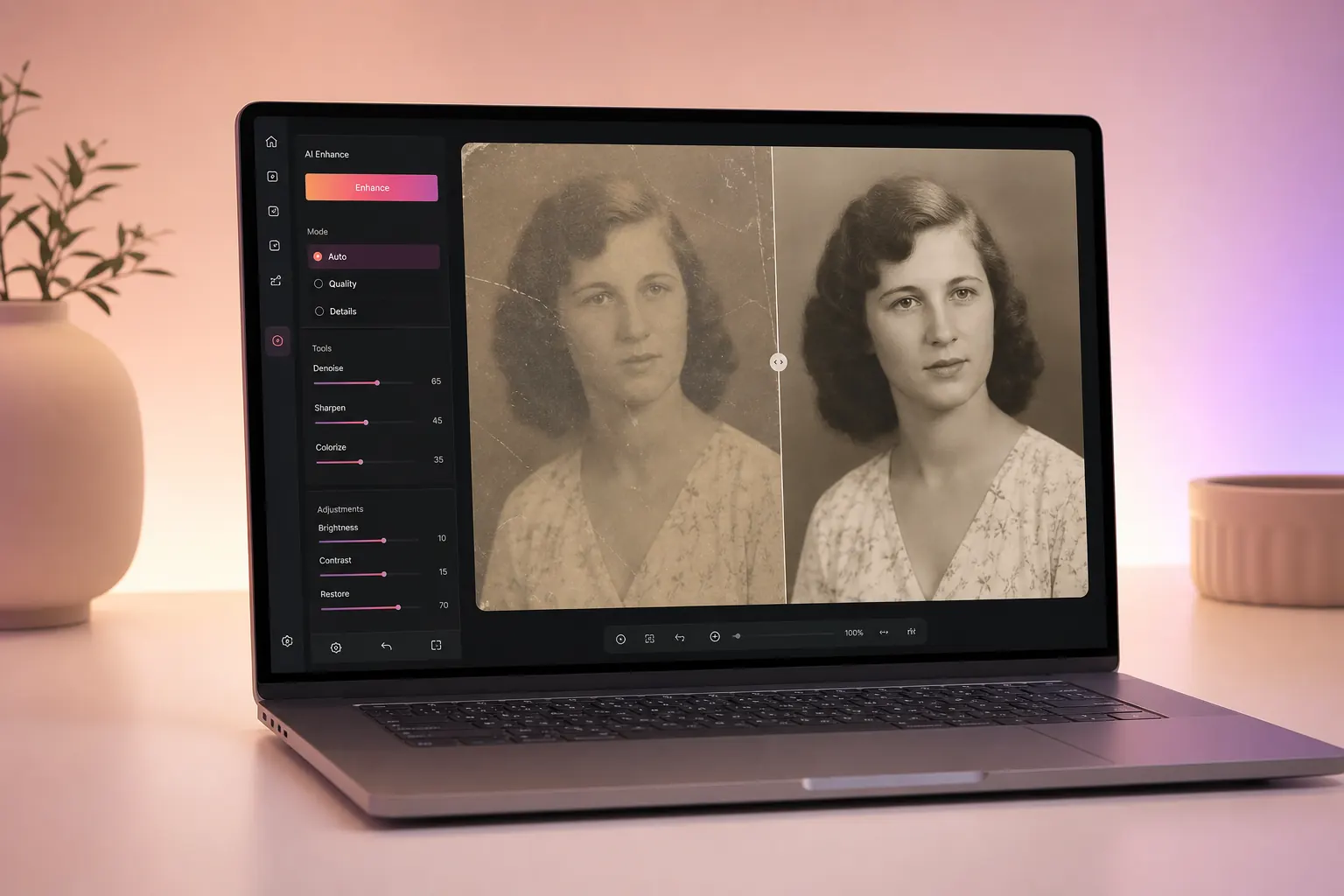
Can you use Remini on PC?
Remini is primarily known as a mobile photo-enhancement app, but PC users still have practical options. The easiest is Remini Web, which runs in a supported browser and avoids an Android installation. A second option is an Android emulator that creates a mobile environment on Windows or macOS.
The best method depends on what you need. Choose the web version for a quick, low-maintenance workflow. Consider an emulator only when you specifically need the Android interface and your computer has enough memory and processing power.
Best ways to run Remini on Windows or Mac
Use Remini Web
Open Remini in Chrome, Edge or Safari, sign in and enhance photos without installing an emulator.
Open the Web guide →Use an Android emulator
Install a trusted emulator, sign in to Google Play and use the official Android application in a virtual device.
See emulator steps →Recommended PC requirements
Close heavy background applications before running an emulator. Browser access generally uses fewer system resources.
How to use Remini on PC
Choose the browser or emulator method
For most users, start with Remini Web. Use an emulator only if the mobile app workflow is essential.
Open the official service
Visit the official Remini website or download a reputable emulator from its official website.
Sign in carefully
Use your account in the official interface and enable two-factor protection where available.
Upload a copy of your photo
Keep the original file safe and test the workflow with a duplicate before editing important images.
Enhance and export
Compare the result at full size, watch for over-sharpening and save the best version locally.
Web version vs Android emulator
| Area | Remini Web | Android emulator |
|---|---|---|
| Setup | Open in browser | Software installation required |
| System load | Usually lighter | Uses more RAM and CPU |
| Mobile interface | Not identical | Closer to Android app |
| Updates | Handled online | Update app and emulator |
| Best for | Fast photo enhancement | Users needing the app workflow |
Our recommendation
Start with Remini Web because it is faster to set up and easier to maintain. Move to an emulator only if a specific mobile-only feature is unavailable in the browser.
What Remini can do on a computer
Using Remini on a larger display makes it easier to judge facial detail, grain, colour balance and over-sharpening before you export a result. The core enhancement is still processed by Remini’s AI service, but a PC gives you a more comfortable workspace for reviewing scans, sorting family albums and comparing several versions of the same image.
Restore soft family photos
Upload a clean scan or the best available digital copy. Remini can improve visible facial detail and reduce the dull appearance common in older photographs.
Review on a bigger screen
A laptop or monitor makes small artefacts easier to spot. Zoom in around eyes, hair and textured clothing before saving the final file.
Organise larger batches
Desktop folders make it simpler to separate originals, test edits and final exports. Rename files clearly so the untouched source is never overwritten.
Enhance short video clips
When video enhancement is available on your account, use short clips first. Video processing can require more time, memory and network bandwidth than a single photograph.
AI enhancement creates an interpretation of missing detail. It cannot recover information that was never captured, so keep the original file and treat the enhanced copy as a new version.
Pros and cons of using Remini on PC
| Advantages | Limitations |
|---|---|
| Larger preview for checking faces and fine detail | No traditional offline desktop editor is required or guaranteed |
| Easy access to folders, scanners and cloud backups | Web features can vary by account, region and current service |
| Browser method is quick and uses fewer resources | An emulator can consume substantial RAM and processor power |
| Convenient before-and-after comparison | Most AI processing still needs a stable internet connection |
| Useful for old albums and content preparation | Free usage may include limits, ads or paid upgrade prompts |
Tips for the best Remini results on Windows or Mac
Start with the highest-quality source
Use the original photo or a high-resolution scan instead of a compressed image copied from a messaging app. A clean source gives the AI more useful information.
Scan printed photos carefully
Wipe dust from the scanner glass, place the photograph straight and scan in colour even when the original is black and white. This preserves subtle tonal information.
Keep one untouched backup
Create separate folders for originals and enhanced copies. Never use the enhanced export to replace your only copy of an important memory.
Check faces at full size
AI tools may create unnatural eyelashes, teeth, jewellery or skin texture. Compare the result with the original and choose the most believable version.
Avoid repeated enhancement
Running the same file through several enhancement passes can produce harsh edges and plastic-looking faces. One controlled pass is usually a better starting point.
Common Remini PC problems and practical fixes
The page loads but the upload does not start
Refresh the official page, confirm the file format is supported, disable an aggressive script blocker for that site and try a smaller copy. Also check that your browser is fully updated.
The emulator is slow or freezes
Close background applications, confirm hardware virtualisation is enabled where supported and allocate reasonable memory to the emulator. If the computer has limited RAM, use Remini Web instead.
The enhanced image looks unnatural
Return to the original, select a less aggressive enhancement when available and inspect facial areas carefully. Very small or heavily damaged faces may not produce reliable results.
Remini cannot sign in on the browser
Check the system date and time, allow required cookies for the official service and retry in a current browser. Avoid entering account details on unofficial mirror pages.
The exported file is difficult to find
Check the browser’s Downloads folder and download history. Choose a dedicated folder for restored images and rename each export immediately.
Remini for PC FAQs
Is there an official Remini desktop installer?
Use the official web experience where available. Be cautious with websites claiming to provide an unofficial Windows EXE or DMG.
Can Remini run on a low-end PC?
The browser method may work, but large images and emulators can be demanding. Reduce background apps and use current browser software.
Does Remini work on Mac?
Yes, the browser method works on supported macOS browsers. Emulator availability and performance depend on the Mac model and processor.