
Remini Web Your Online AI Editing Solution
Enhance photos from a modern browser without installing an Android emulator. This guide covers access, requirements, workflow and the differences between Remini Web and the mobile app.
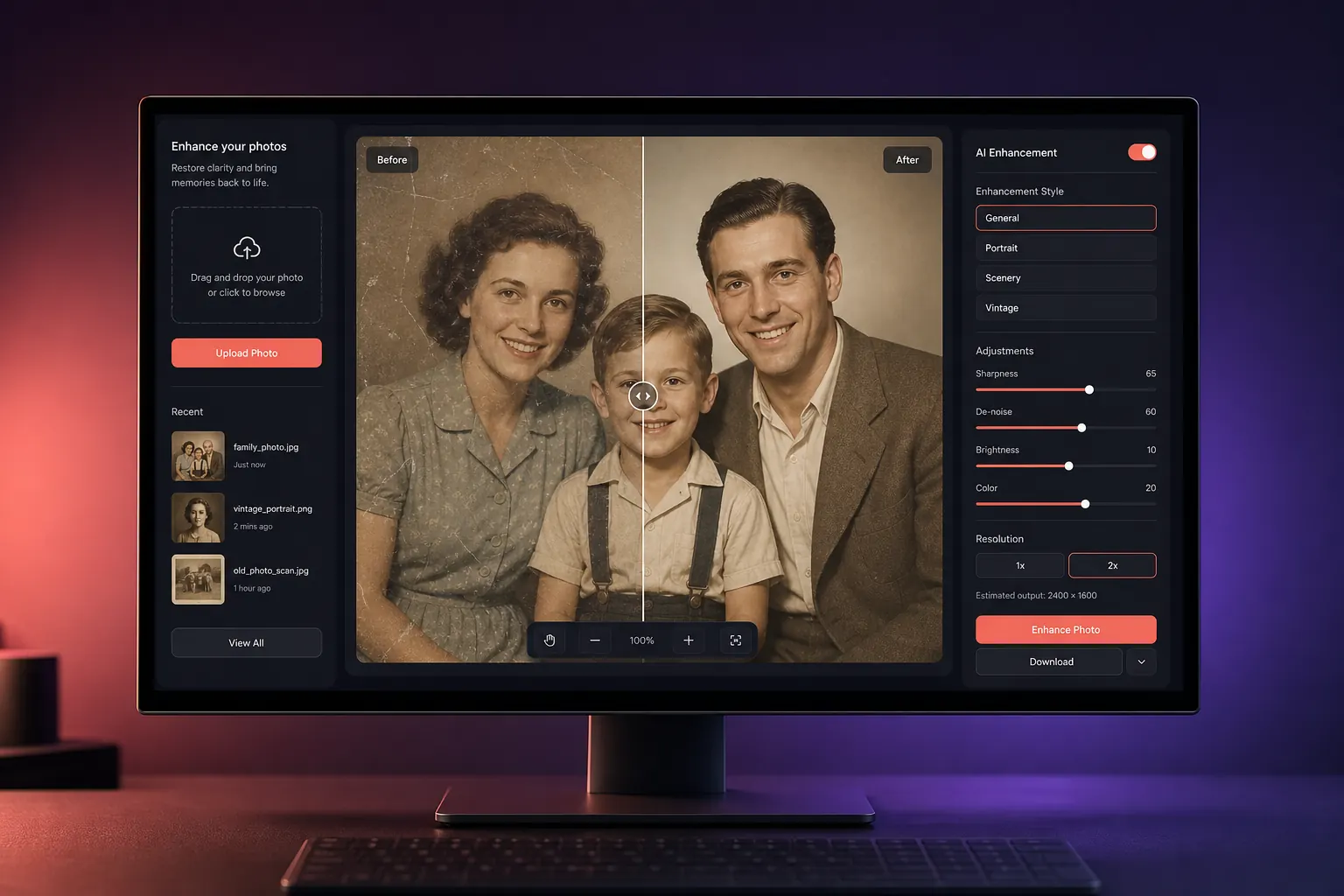
What is Remini Web?
Remini Web is a browser-based way to access compatible AI photo-enhancement features. It is useful when you want to work from a laptop or desktop, review details on a larger display or avoid running an Android emulator.
Available tools can differ from the mobile application and may change over time. The web version commonly requires an internet connection and an account because AI processing is handled online.
A cleaner desktop workflow
No app installation
Open a supported browser and use the available online tools without a mobile package.
Larger preview
Inspect faces, texture and before-and-after differences on a bigger display.
Easy file access
Select scans or photos directly from folders already stored on your computer.
Cross-platform use
Access can work across Windows, macOS and other systems with compatible browsers.
How to use Remini Web
Open the official Remini website
Use the official domain and check the address carefully before signing in or uploading a photo.
Sign in to your account
Choose the supported login method and avoid reusing a weak password.
Upload a duplicate photo
Keep the original untouched and upload a working copy in a supported image format.
Select an available enhancement
Choose the tool that matches your image, such as portrait or old-photo improvement.
Review at full size
Compare the result closely for invented details, excessive smoothing or unnatural sharpening.
Download the final image
Save the preferred result to a clear folder and keep the original alongside it.
Browser and connection requirements
Do not upload identity documents, confidential work images or other highly sensitive photographs to an online AI editor.
Remini Web vs mobile app
| Area | Web version | Mobile app |
|---|---|---|
| Access | Modern browser | Android or iOS app |
| Installation | Not normally required | App installation required |
| Screen | Ideal for larger displays | Optimized for touch |
| Feature range | May be more focused | Can include more mobile tools |
| Files | Desktop folders | Phone photo library |
| Best for | Quick desktop editing | On-the-go enhancement |
For PC users, start here
The browser route is usually simpler than installing an Android emulator. If a specific tool is missing, compare the official mobile app options afterward.
Why Remini Web stands out
Remini Web brings AI-assisted enhancement to a laptop or desktop without requiring a traditional photo editor. It is useful when your images are already stored on a computer, when a phone screen feels too small or when you want to compare details on a larger display. The browser handles the interface while the enhancement is generally processed online.
No emulator required
Open the official website in a supported browser instead of creating a virtual Android device.
Larger before-and-after view
Check eyes, hair, clothing and textured backgrounds more carefully before downloading the final image.
Direct folder access
Upload scans and camera files from organised desktop folders and save exports without transferring them through a phone.
Works across operating systems
A current browser can provide a similar workflow on Windows, macOS, Linux and many Chromebooks.
Pros and cons of Remini online
| Advantages | Limitations |
|---|---|
| No mobile app or emulator installation | Requires a reliable internet connection |
| Comfortable large-screen preview | Available tools can differ from the mobile app |
| Easy access to computer folders and scans | Large files may upload and process slowly |
| Updates are handled by the web service | Free usage or export quality may be limited |
| Useful on several desktop operating systems | Cloud processing requires thoughtful privacy choices |
Tips for clearer online enhancement
Upload the best copy
Use the original camera file or a clean scan. Avoid screenshots and heavily compressed images when a better source exists.
Use stable Wi-Fi or wired internet
An interrupted upload can fail before processing starts. Video enhancement needs more bandwidth than a photograph.
Keep a backup outside the browser
Store the untouched original in a separate folder and download the result as a new file.
Inspect generated detail
AI can make an image look clearer while reconstructing fine features incorrectly. Zoom in before sharing or printing.
Finish with light manual edits
After enhancement, use a normal editor for cropping, rotation and subtle colour adjustment rather than repeatedly running the AI tool.
Think before uploading a photo
Web enhancement sends a file to an online service for processing. Review the current official privacy terms before uploading sensitive material. Avoid identity documents, private medical images, confidential client work or any photograph you do not have permission to process.
Remini is designed to enhance image quality, not to remove ownership marks. Do not use enhancement tools to erase watermarks or misrepresent another person’s work.
For ordinary family photos, work with a duplicate and keep the original offline. Sign out when using a shared computer and remove downloaded files from public devices.
Common Remini Web problems
The upload button does not respond
Update the browser, allow required scripts for the official site, confirm the file format and try a smaller copy. An aggressive content blocker can interfere with upload controls.
Processing takes too long
Check the connection, reduce file size and try outside peak usage times. Video and very large images naturally need more processing time.
The page signs out repeatedly
Allow the required cookies, correct the computer’s date and time and avoid private browsing if it prevents the session from being stored.
The download finishes but the file is missing
Open the browser’s download history and check its default Downloads folder. Rename the export and move it to a dedicated project folder.
The result still looks blurry
The source may not contain enough usable detail. Try a better scan or original file rather than repeatedly enhancing the same compressed image.
What is similar to Remini Web?
Other browser editors can provide upscaling, denoising, colour correction or manual retouching. The right choice depends on whether you need automatic face restoration, creative design tools, batch processing or complete manual control. Compare privacy terms, export limits and pricing instead of choosing only by a dramatic demo image.
Use the simplest suitable tool
Choose Remini when quick AI restoration is the main goal. Use a conventional editor when accurate colour, layers, masking or precise historical restoration matters more than automatic detail generation.
Remini Web FAQs
Do I need to install Remini Web?
No separate Android app or emulator is normally needed. Access the official service through a compatible browser.
Can I use Remini Web on mobile?
Browser access may work on supported mobile devices, but the official app can provide a more touch-optimized workflow.
Why is my upload slow?
Large images, weak connections or busy processing servers can increase upload and enhancement time.
Are Web and app features identical?
Not always. Available tools, limits and subscriptions can vary between platforms and change with updates.